Multi-factor authentication is the single highest return change most people can make to their account security. A stolen password on its own stops being enough. An attacker also needs the phone in your pocket.
What you’ll need
- The enrollment email from Duo Security, in your work inbox
- Your mobile phone (iPhone or Android)
- About five minutes
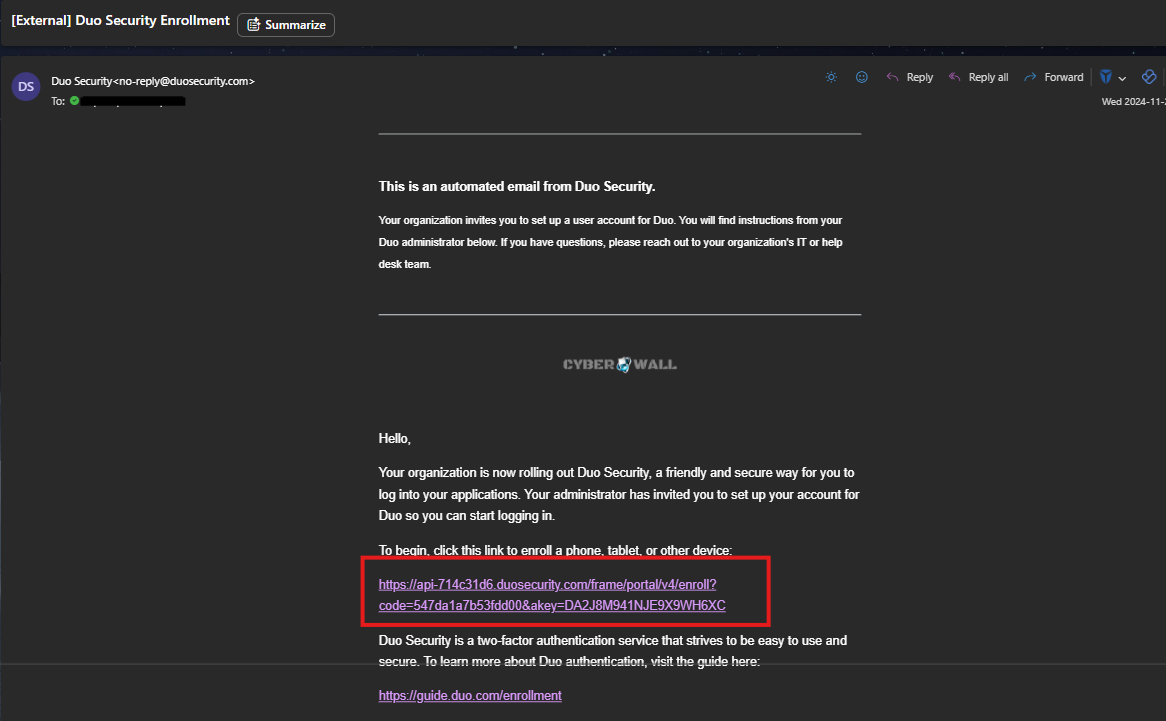
Step 1 — Open the enrollment link
Duo Security emails you an invitation to enroll. Find it in your inbox and select the enrollment link inside.
That link is tied to your account alone. Don’t forward it to anyone.
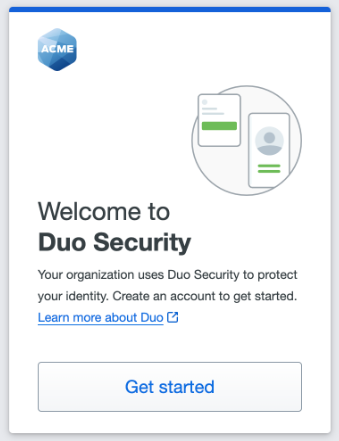
Step 2 — Select Get started
The Duo welcome page opens in your browser. When you’re ready, select Get started.
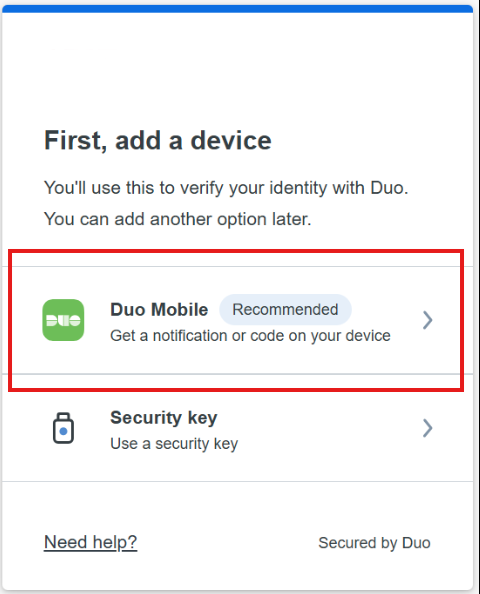
Step 3 — Choose Duo Mobile
Duo asks how you’d like to verify it’s really you. Choose Duo Mobile — it’s the recommended option and by a wide margin the easiest to live with day to day.
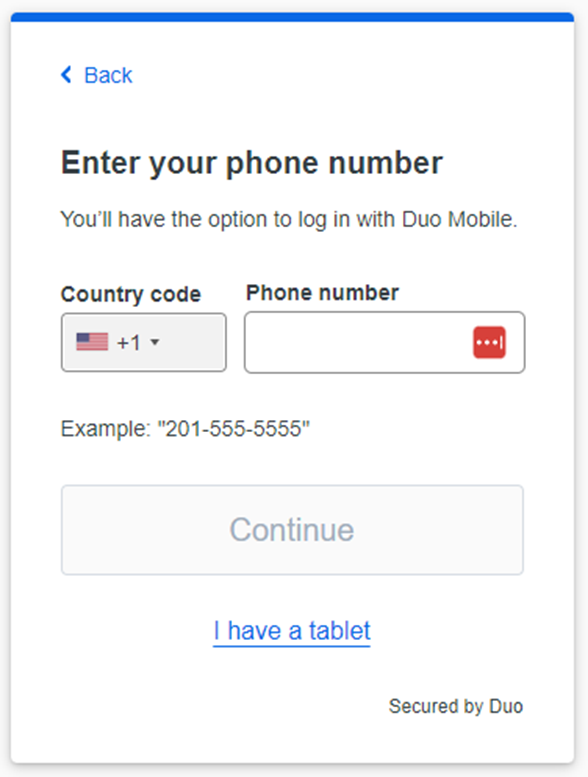
Step 4 — Enter your mobile number
Enter your mobile number and confirm it. This is the phone you’ll set up in the next few steps.
Step 5 — Install Duo Mobile on your phone
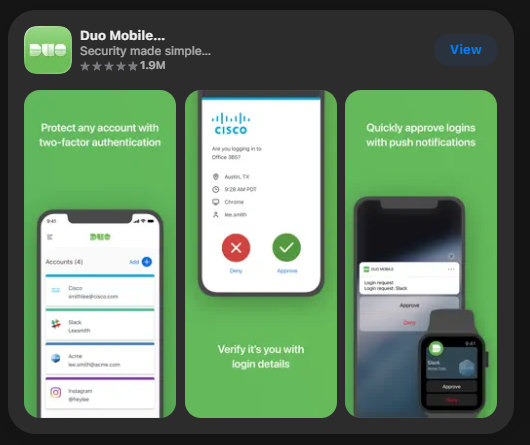
Pick up your phone and open the App Store (iPhone) or Google Play (Android). Search for Duo Mobile and install it. The app is free.
Step 6 — Allow camera and notifications
When the app asks, allow access to your camera and allow notifications. The camera reads your enrollment code in a moment; notifications are how Duo reaches you when you sign in later.
Step 7 — Add an account in Duo Mobile
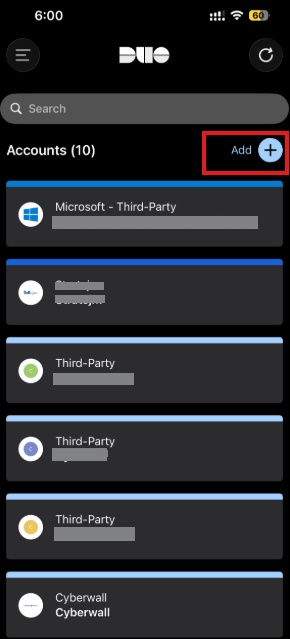
In Duo Mobile, tap the + button beside Add.
Step 8 — Choose Use QR code
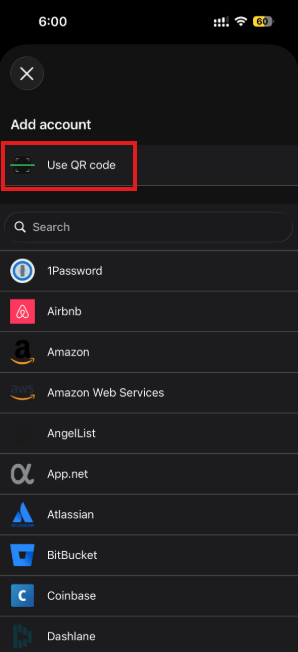
From the list of options that appears, choose Use QR code.
Step 9 — Find the QR code on your computer
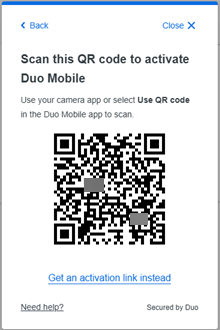
Back on your computer, the enrollment page is displaying a QR code. That code is the private handshake between the app and your account.
Step 10 — Scan it
Hold your phone up to your computer screen so the camera can see the code. The camera does the rest — there’s nothing to type.
Step 11 — Select Continue
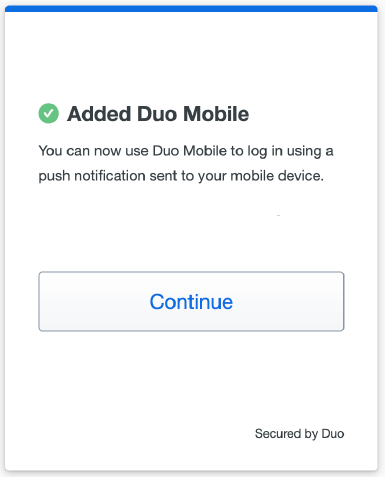
Duo confirms that Duo Mobile has been added to your account. Select Continue.
Step 12 — Skip adding more devices
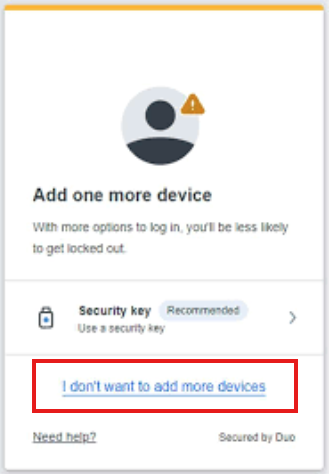
Duo offers to add another device. One device is plenty for most people. Select I don’t want to add more devices.
That’s it. Your account is protected.
What signing in looks like from now on
You sign in the way you always have. Duo then asks your phone to confirm it’s you: a notification appears, you glance at it, tap Approve, and you’re in.
There’s no code to memorize and nothing to type.
One thing worth remembering
Only approve a request when you are the one signing in, right at that moment.
If a Duo prompt arrives and you weren’t signing in, someone else has your password and is trying to use it. Deny the request and tell your security team immediately. That single tap is what stops the attack.
Never approve a prompt because it’s persistent, and never approve one because someone on a call or in a message asks you to.
If you get stuck
Contact IT support and they’ll walk you through it.